

Just as Odysseus needed his compass to navigate the perilous waters of the Mediterranean, you need VuhDo to master the turbulent sea of World of Warcraft’s group content. You’re about to take control of your healing interface in a way that the default UI never allowed. VuhDo isn’t just another addon; it’s a complete system that can make or break your effectiveness in raids and dungeons. As an experienced guide, I’ll walk you through the initial setup, showing you how to import profiles that veteran healers swear by, and then we’ll move on to tailoring the details to fit your personal style. But the real magic of VuhDo lies in its intricate features—features that we will explore together, allowing you to anticipate your allies’ needs and respond with life-saving precision. Stay with me as we uncover the secrets to becoming the healer that every raid leader will compete to have at their side.
Installing and Enabling VuhDo
To get started with VuhDo, you’ll first need to download it from either CurseForge or Wago and install it using an addon manager or manually. This VuhDo addon guide will help you through the process of installing and enabling Vuhdo in World of Warcraft, ensuring you’re ready to support your party or raid with efficient healing.
Once downloaded, extract the files to your WoW Addons folder if you’re installing manually. Otherwise, your addon manager should take care of this step. Next, launch WoW, and in the character select screen, click on the “Addons” button at the bottom left. Make sure VuhDo and VuhDo Options are checked to enable them.
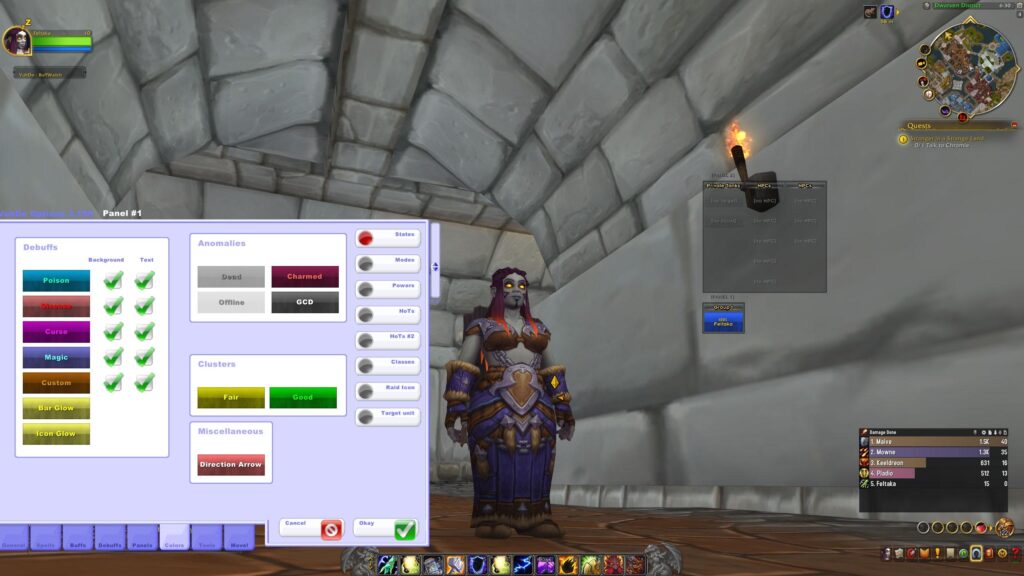
In-game, you’ll see VuhDo’s panels appear, which are crucial for healing classes. These panels can be customized with common settings to fit your playstyle. For instance, you can assign spells to mouse clicks and set up usable item buttons for quick access during combat.
Take some time to explore VuhDo’s settings. Adjusting panel sizes, choosing what information to display, and setting up smart casts for efficient healing are just a few examples of the customization available. With VuhDo properly set up, you’ll be an invaluable asset to your team.
Profile Import and Customization
Having established the basics of setting up VuhDo, let’s now focus on how you can import and customize a profile to tailor the addon to your specific needs. Profile import and customization are integral parts of the VuhDo addon guide, as they allow you to enhance your gameplay by meticulously organizing your interface.
Here’s how to make the magic happen:
- Find Inspiration: Browse through presets shared by the community to discover the perfect arrangement of panels that resonate with your healing style.
- Seamless Integration: Importing profiles is a breeze—just a few clicks and you’re transformed, ready to monitor the health of raid members with newfound clarity.
- Personal Touch: Dive into customization; adjust mouse click combinations and make the raid member panels truly your own.
- Strategic Overview: Perfect the arrangements of panels for a strategic edge, ensuring no health bar goes unnoticed.
This process isn’t just about efficiency—it’s about making your role as a healer feel intuitive and responsive. By customizing VuhDo to suit your preferences, you’ll be the guardian angel your raid team relies on, all while feeling empowered by a setup that feels like an extension of your own gaming instincts.
Utilizing Chat Commands
Master the convenience of VuhDo by learning how to use chat commands for quick customization and on-the-fly adjustments to your setup. When you’re in the thick of battle and need to tweak your healing spells without fumbling through menus, these commands are your best friends. Let’s say you’ve just learned a new suitable spell for instant casts. Rather than navigating through multiple screens, you can use a simple chat command to assign it to your desired mouse clicks.
Start by opening the VuhDo options with “/vd opt” and head over to the ‘Spells’ tab. Here, you can input a chat command to bind your new spell to a mouse click. It’s as easy as typing “/vd spell [Mouse-Button] [Spell-Name]”, replacing “[Mouse-Button]” with your preferred click and “[Spell-Name]” with the instant cast spell you want to assign.
This type of on-the-fly adjustment is critical for healers who need to respond to changing raid or dungeon scenarios. VuhDo’s chat commands enable you to stay focused on the action, ensuring your team gets the heals it needs, when it needs them, with just the right spells at your fingertips.
Scanners and Healing Indicators
VuhDo’s scanners and healing indicators provide real-time data to keep you aware of who needs healing and how urgently. As a healer, you’re the lifeline of your group, and these tools are essential to your toolkit. Imagine the battlefield – chaos all around, your allies taking damage left and right. That’s when VuhDo becomes your sixth sense, a beacon in the storm, guiding your healing hands with precision.
Here’s what you’ll get with VuhDo’s scanners and healing indicators:
- Immediate Clarity: Effortlessly see who’s in critical condition with health bars that change color based on health percentage.
- Proactive Alerts: Stay one step ahead as VuhDo warns you of incoming damage and the health trends of your allies.
- Visual Cues: Don’t miss a beat with indicators that highlight players affected by debuffs or missing buffs – your cue to leap into action.
- Intuitive Range Checking: Never waste a spell again. VuhDo’s range finder shows you who’s within your healing reach, ensuring your mana is spent wisely.
As you master these features, you’ll feel the pulse of the battlefield, your confidence will grow, and you’ll be the hero who turns the tide with every life-saving decision.
Advanced Configuration Options
Diving into advanced configuration options, you’ll discover the power to fine-tune VuhDo’s functionality to match your specific healing style and preferences. You’ve got the basics down, so let’s crank it up a notch. Start by exploring the “General” tab for customizing panel behavior. You can adjust how frames change color or fade based on health, combat, and other conditions.
In the “Profiles” section, you can create or import profiles tailored for different characters or roles. This means you can switch setups quickly without starting from scratch each time. You’ll also find options for filtering which units to display, and under the “Miscellaneous” tab, you can hide Blizzard’s default frames and set up smart casts for faster in-game reactions.
The “Buffs” and “Debuffs” tabs are crucial for keeping track of what’s affecting your teammates. Customize which buffs and debuffs to monitor and how they’re displayed, ensuring you’re always on top of your healing game.
And don’t forget the “Spells” menu, where you can assign abilities to various mouse clicks and modifiers, making your response time lightning fast. Lastly, check out the “Keybinds” section to bind spells to keys exclusively for VuhDo frames, streamlining your play even further.
Conclusion
As you’ve journeyed through the mystical lands of VuhDo, you’ve become the masterful healer of legend, your interface now an enchanted tome of knowledge and power. With each click, you weave spells of restoration as easily as a bard plucks heartstrings, your allies thriving under your watchful gaze. Embrace this newfound might, oh healer, for your hands carry the light of life, turning the tides of battle with a grace that echoes through the ages.